Tasks
Metis Tasks provides a centralized view for tracking and managing AI-assisted data engineering activities.
Each request submitted through the Metis Agent is represented as a task, with its progress and execution details available from the task page.
The Tasks page provides visibility into:
- Task status and progress
- AI-generated workflow steps
- Changes made by Metis
- Validation activities
- Execution logs
- Merge Requests generated from completed tasks
My Tasks
The My Tasks tab displays tasks associated with the current user.
Use this view to:
- View your tasks.
- Check task status and progress.
- Review completed tasks.
- Open a task to view its details.
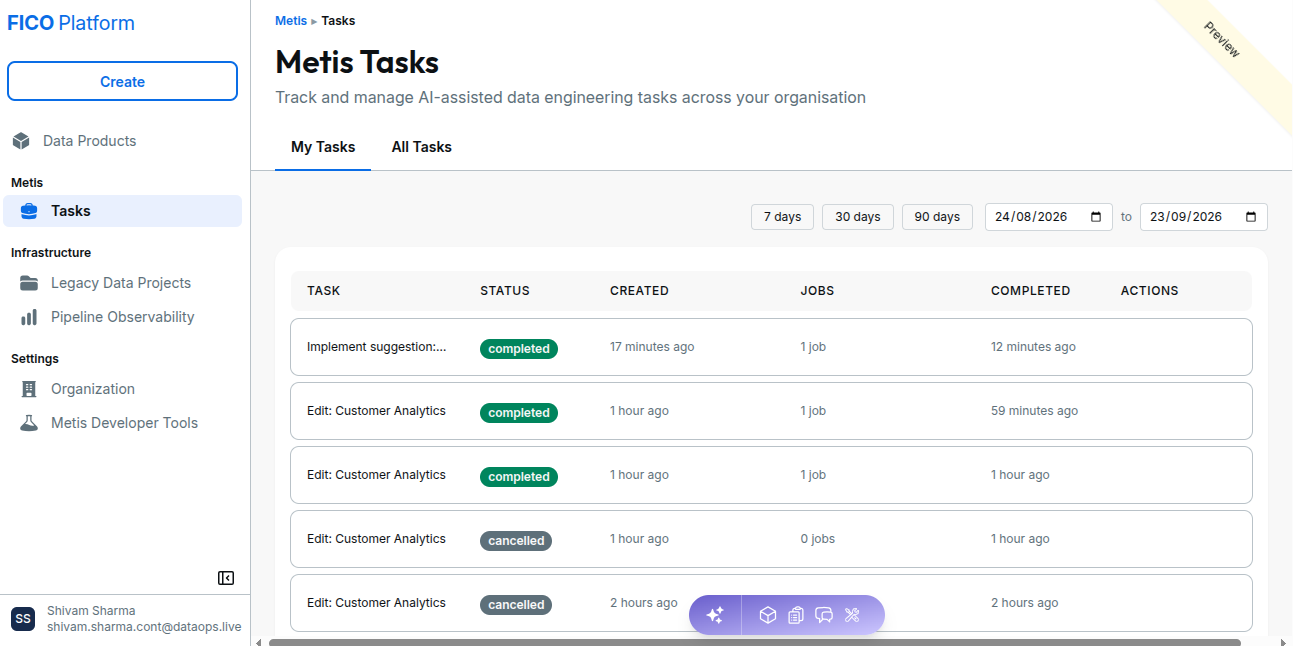
This is useful for users who primarily want to monitor their own AI-assisted development activities.
All Tasks
The All Tasks tab displays tasks available within the applicable project or organization.
Use this view to:
- View all tasks created by user.
- Track task status and progress.
- Review completed and in-progress tasks.
- Open a task to view its details.
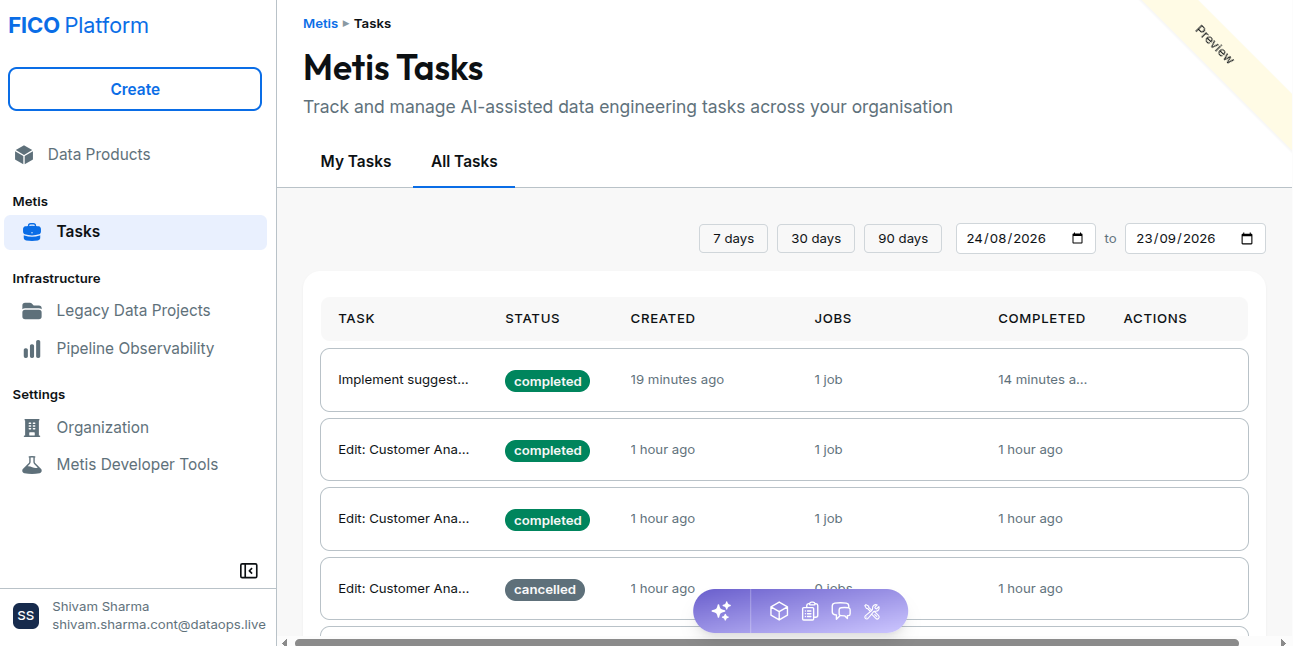
Task List
The All Tasks view displays tasks created through Metis, including their name, status, creation time, and associated jobs.
Use the task list to quickly identify tasks that are currently in progress or completed.
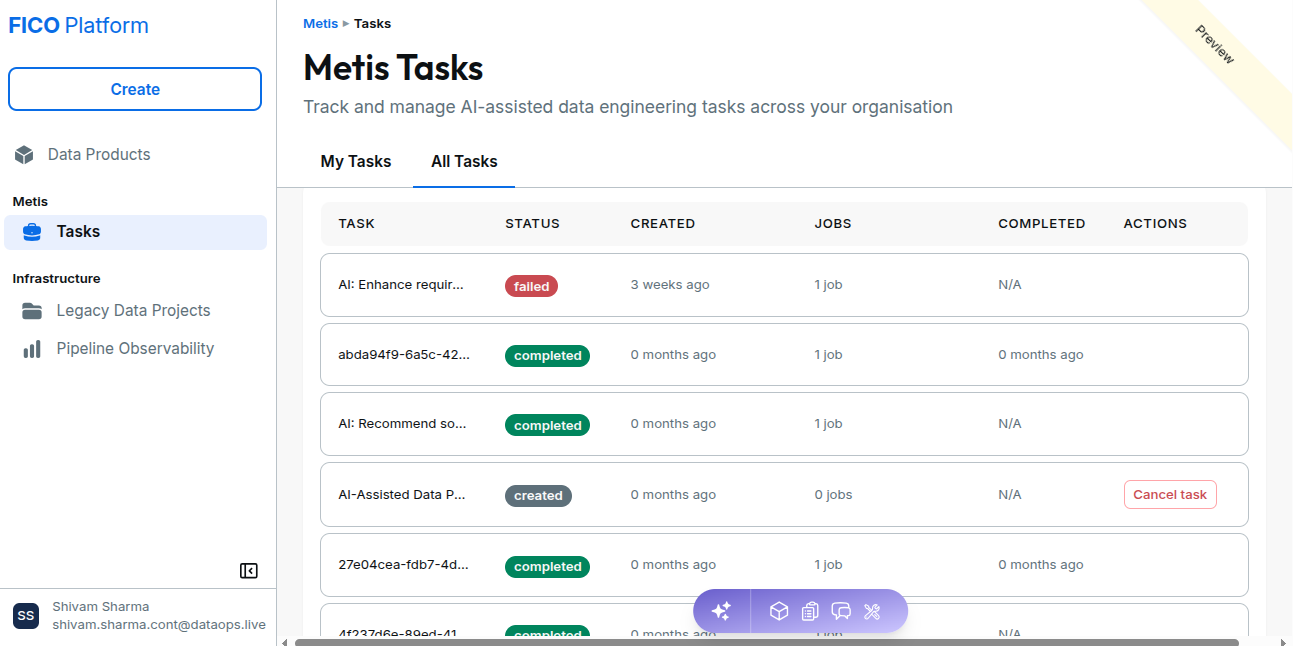
The task list provides a quick way to:
- Monitor active tasks.
- Identify completed tasks.
- Open a task for detailed information.
- Review when a task was created.
- Check the number of jobs associated with a task.
Task Status
Each Metis task displays its current status in the task list and task details.
Common task states include:
| Status | Description |
|---|---|
| In Progress | The task is currently being processed by Metis. |
| Completed | The requested workflow has completed successfully. |
| Failed | The task encountered an error and could not complete successfully. |
| Cancelled | The task was cancelled before the workflow completed. |
For example, when Metis processed a request, the task appears with a Completed status.
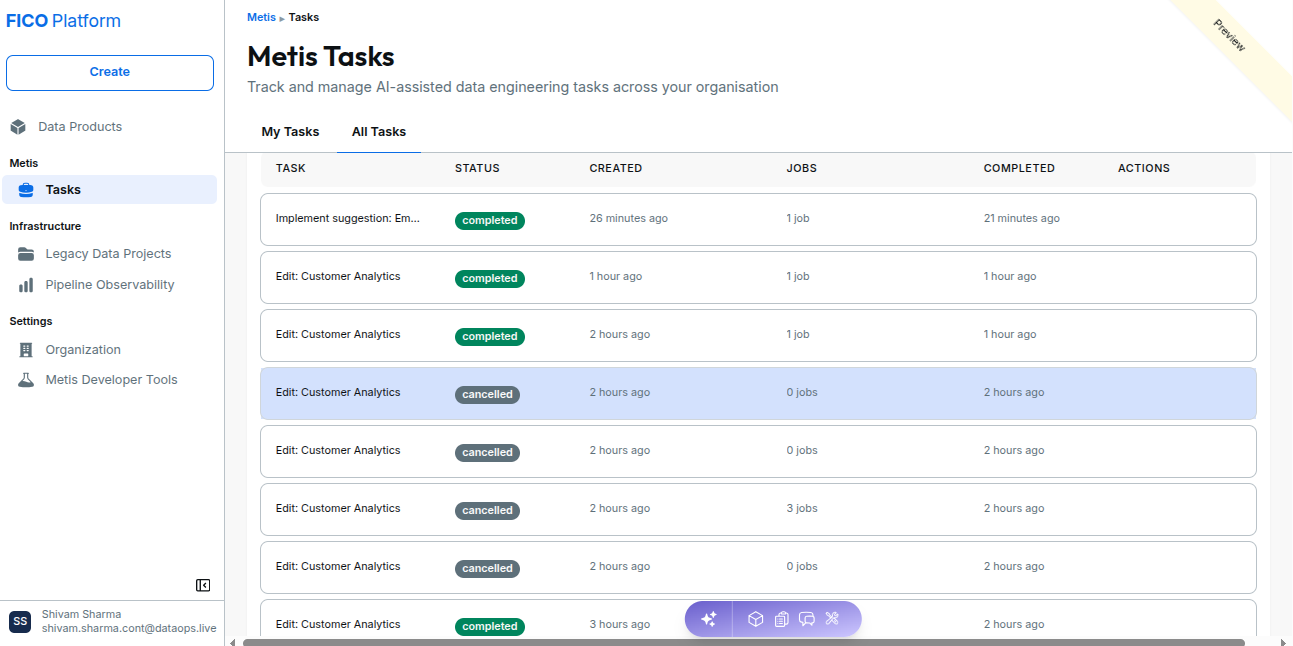
The status changes as the workflow progresses and provides users with a quick indication of whether further action is required.
Open a Metis Task
Select a task from the task list to view its details.
The task details page provides an overview of the Metis workflow, including:
- Timeline – View the task progress and activities.
- Todos – Review the actions performed by Metis.
- Questions – View questions asked during the workflow.
- Changes – Review changes made by Metis.
- Context – View the context used during the workflow.
- Log – View the workflow logs.
These sections provide visibility into the complete lifecycle of the Metis task.
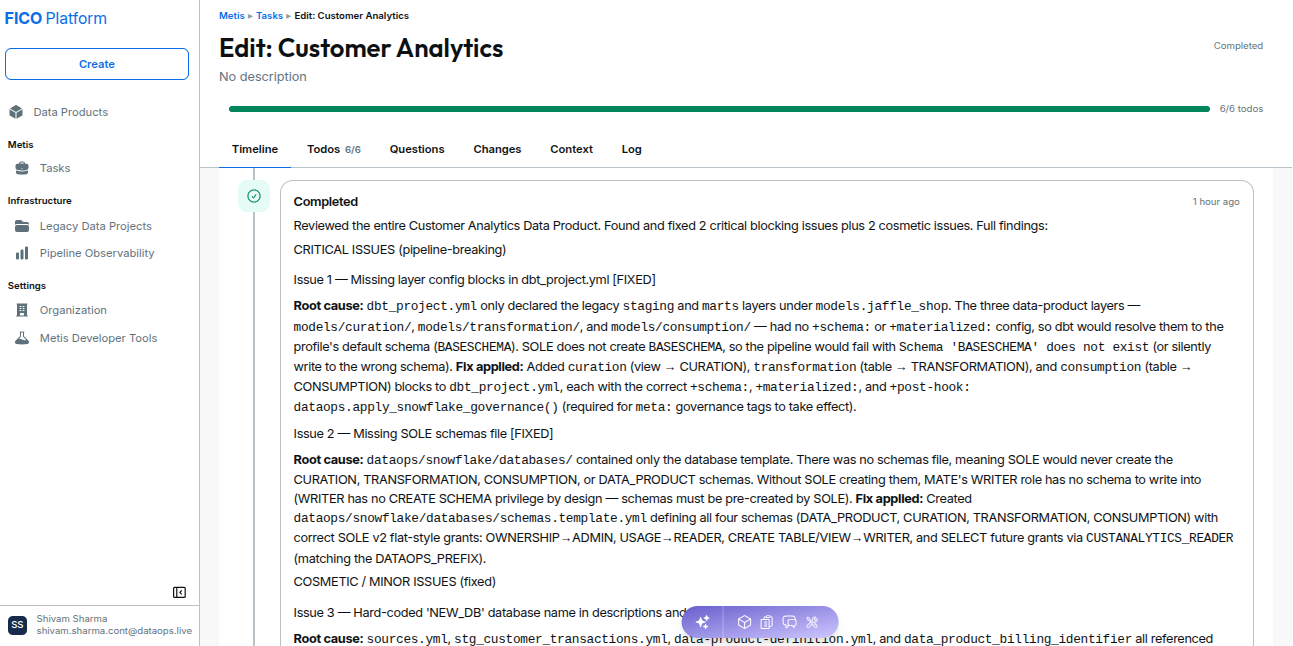
The task header also displays the tasks title, its current status and overall progress of the task.