Organization Sign-in for Develop
Organization sign-in change
DataOps.live Develop has introduced a new sign-in step to support enhanced authentication and prepare for future platform upgrades. When accessing Develop, you will now be prompted to sign in using an organization.
Signing in to Develop
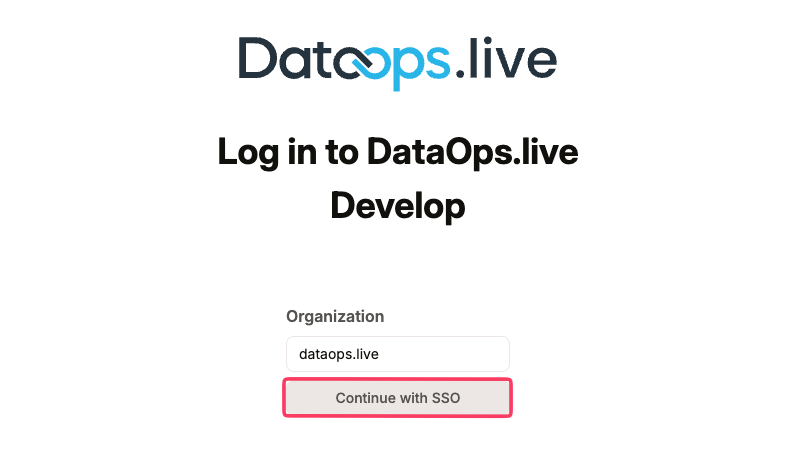
When you sign in to Develop, you will see a Continue with SSO button:
-
In the organization input text field, enter
dataops.live(unless you have been advised otherwise by DataOps.live). -
Click the Continue with SSO button.
-
Continue with the authentication process.
info
This organization sign-in step is required as a preliminary step to upgrade Develop in the future.
Troubleshooting
Signed in to the wrong organization
If you find yourself signed in to the wrong organization:
- Sign out of Develop.
- Enter
dataops.livein the organization input field. - Sign in again using the Continue with SSO button.
- Complete the authentication process.
What's next
- Continue DevReady setup and configuration
- Explore MATE use cases