Metis Developer Tools
Metis Developer Tools provides configuration and management capabilities for the Metis development environment. It allows authorized users to manage Workspaces, Agents, CLI Profiles, Template Projects, Snowflake Project Mappings, Custom Skills, and Agent Configuration from a centralized interface.
Navigate to Settings and select "Metis Developer Tools" to access the available configuration options.
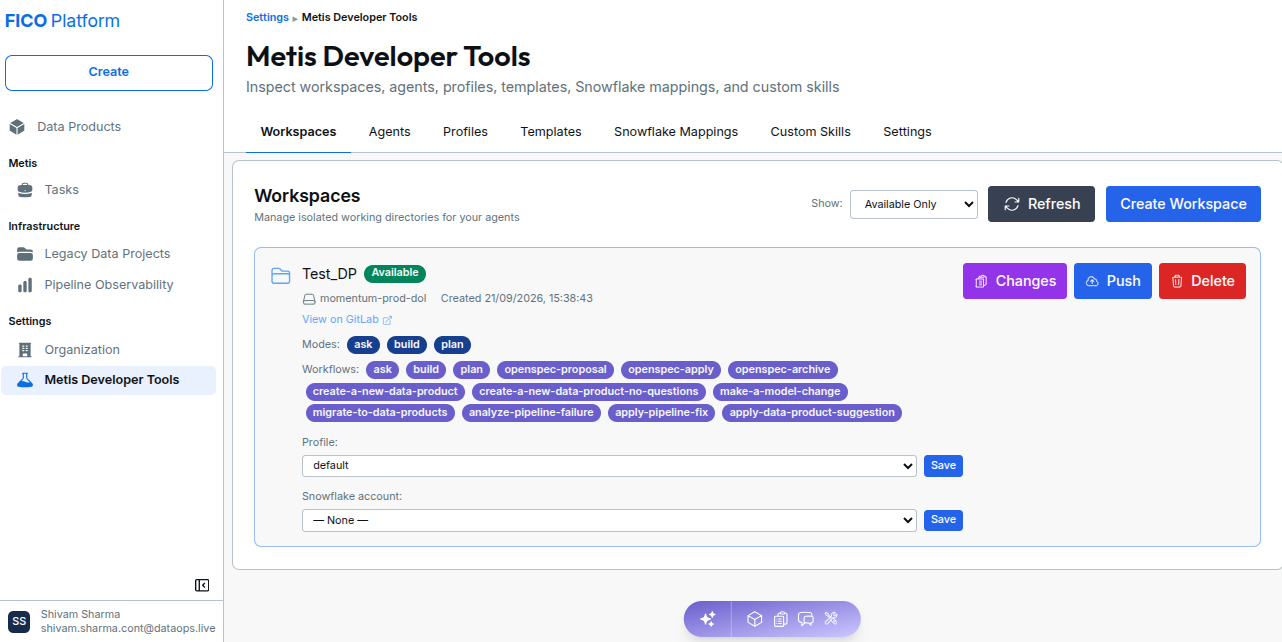
Available Tools
The Metis Developer Tools page provides the following tabs:
| Tab | Purpose |
|---|---|
| Workspaces | Create and manage isolated working directories for Metis agents. |
| Agents | Manage Metis agents and generate API tokens for agents. |
| Profiles | Configure reusable CLI profiles for workspace and edit-session initialization. |
| Templates | Create and manage project templates used for workspace initialization. |
| Snowflake Mappings | Map repositories or Data Products to Snowflake account locators. |
| Custom Skills | Create and manage reusable instructions used by Metis when generating Data Products. |
| Settings | Configure default settings for new Metis agent workspaces. |
1. Workspaces
The Workspaces tab provides access to Metis workspace management. It provide the execution environment used by Metis for development and Data Product generation. Workspace-related configuration can be managed from the Metis Developer Tools interface.
From this tab, users can:
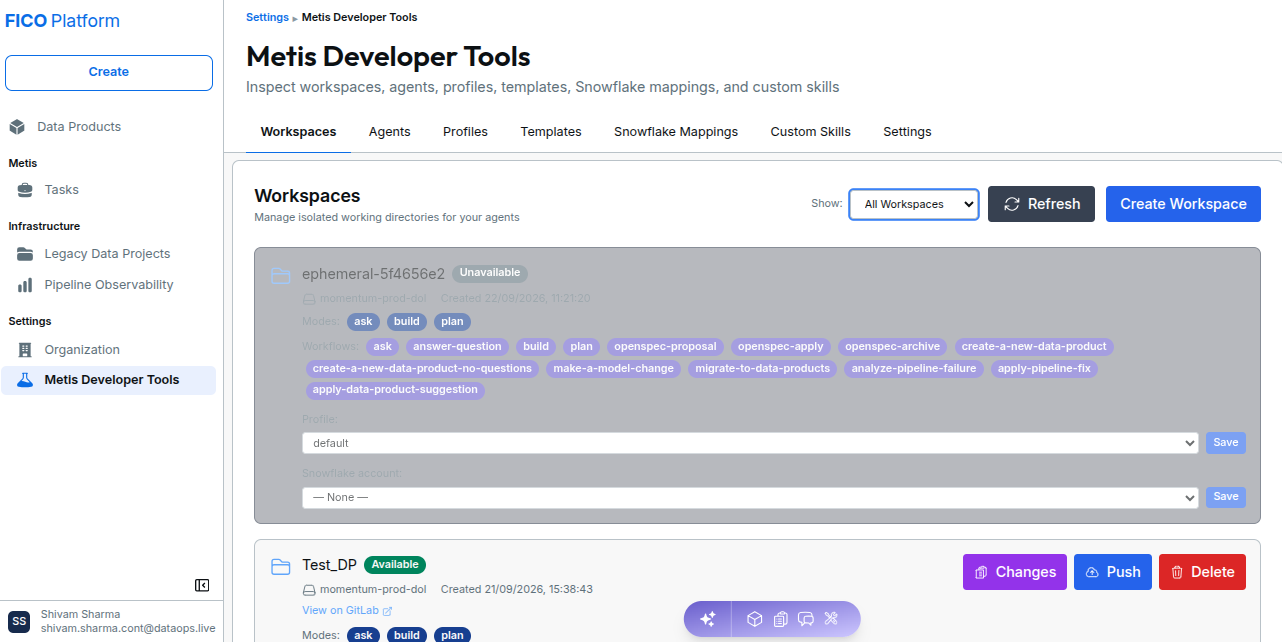
- View available workspaces.
- Filter workspaces by availability.
- Refresh the workspace list.
- Create a new workspace.
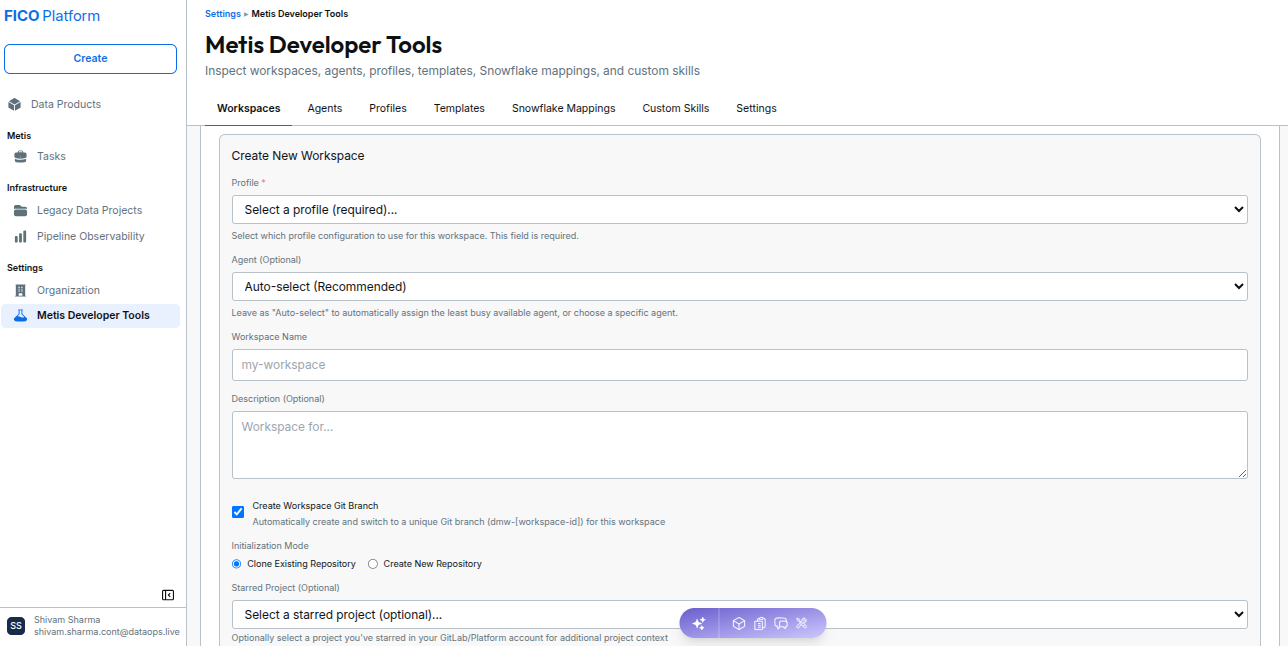
Workspace Configuration
The Create New Workspace form requires the user to provide the following options:
| Field | Description |
|---|---|
| Profile | Required. Select the profile configuration to use for the workspace. |
| Agent | Optional. Select a specific agent or use Auto-select (Recommended). |
| Workspace Name | Name used to identify the workspace. |
| Description | Optional description of the workspace. |
| Create Workspace Git Branch | Creates and switches to a unique Git branch for the workspace. |
| Initialization Mode | Select whether to clone an existing repository or create a new repository. |
| Starred Project | Optional project selection that provides additional project context during workspace initialization. |
2. Agents
The Agents tab provides a central view of Metis agents configured for the organization.
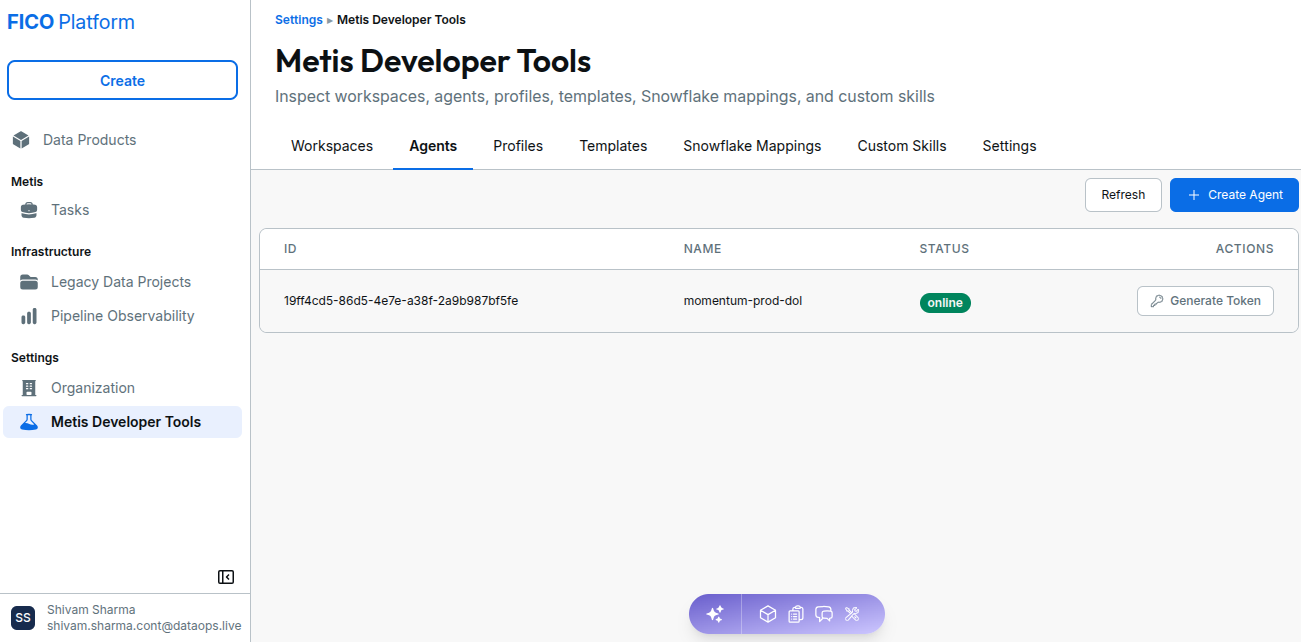
Create an Agent
Select Create Agent to start creating a new Metis agent.
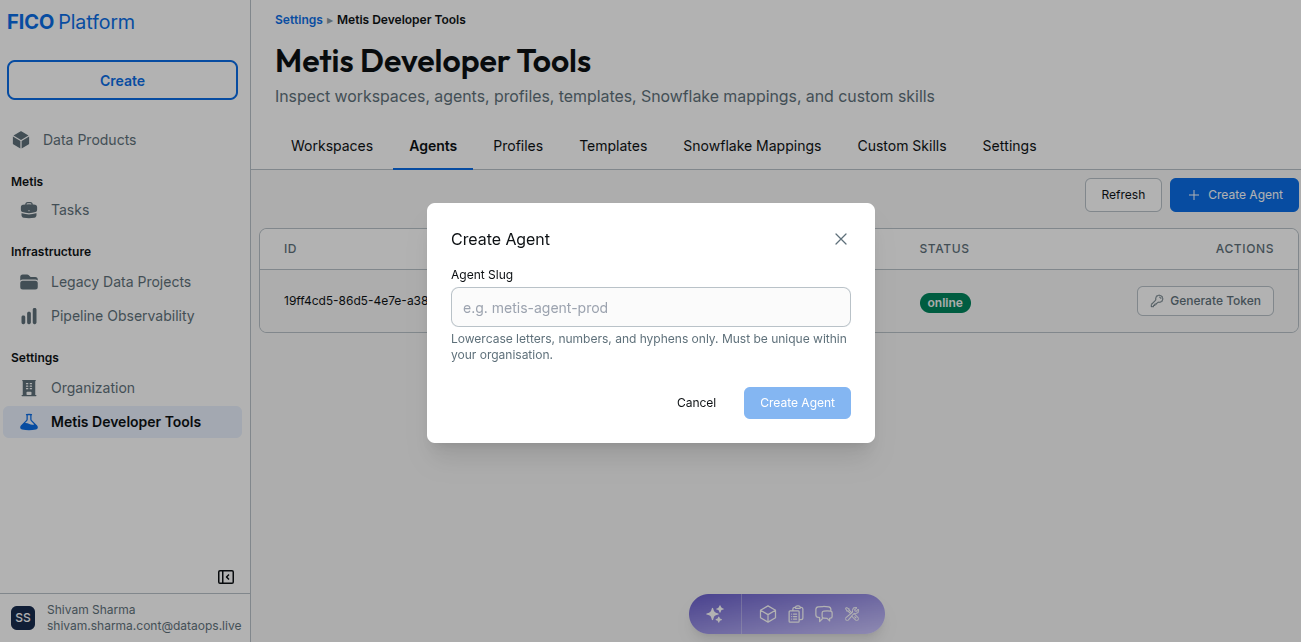
After an agent is created, it appears in the Agents list.
Generate an API Token
Each agent can have an API token generated from the Actions column.
To generate a token:
- Locate the required agent.
- Select Generate Token.
- Use the generated API token to authenticate the agent where required.
Treat generated API tokens as sensitive credentials and store them securely.
3. Profiles
The Profiles tab manages reusable CLI configuration profiles used when initializing workspaces and edit sessions.
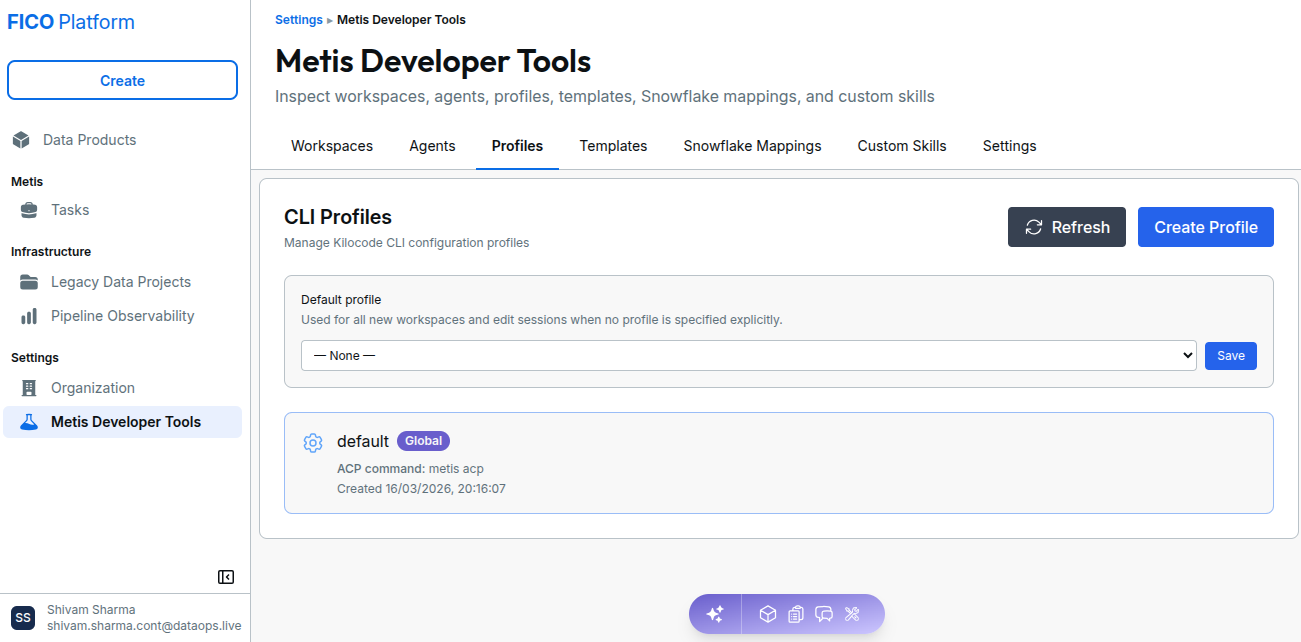
Profile Configuration
A CLI profile contains the configuration required to initialize the Metis CLI environment, including a unique Slug, Git Repository URL, Git Ref, ACP Startup Command, and, when applicable, the Snowflake Account Locator.
The available fields include:
| Field | Description |
|---|---|
| Slug | Unique identifier used for the profile. |
| Git Repository URL | Git repository containing the profile configuration files. |
| Git Ref | Branch, tag, or commit SHA used from the repository. |
| ACP Startup Command | Command used to launch the ACP agent subprocess. |
| Snowflake Account Locator | Snowflake account identifier associated with the profile. |
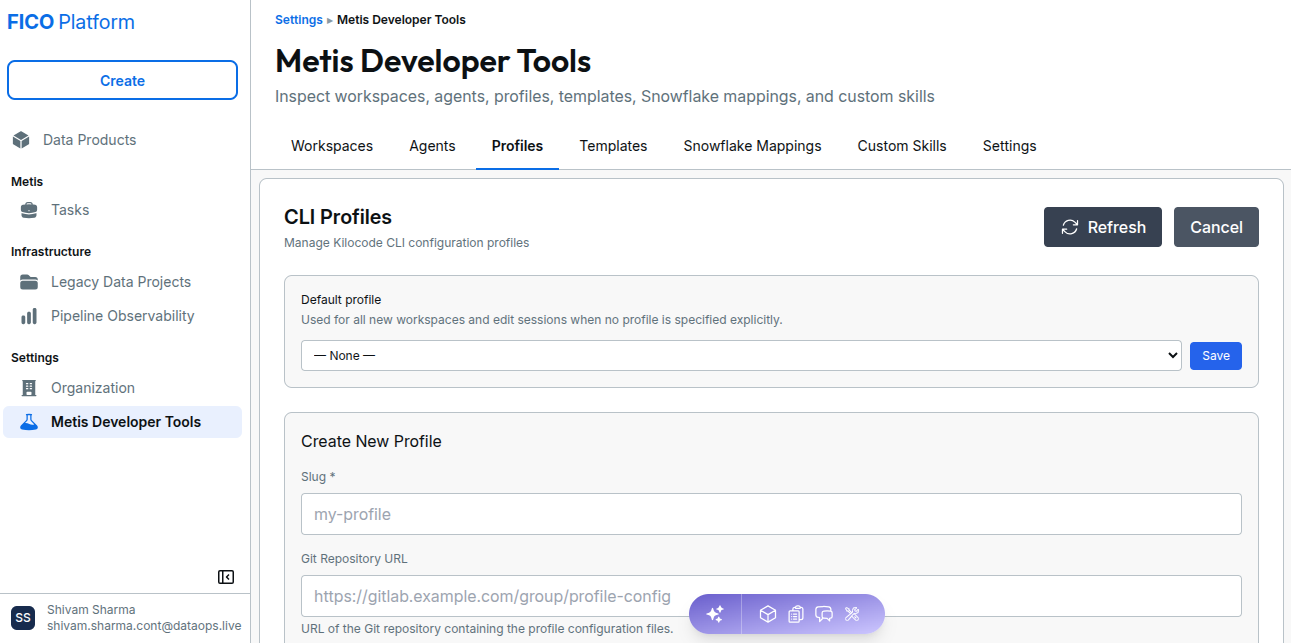
To create a profile, open Profiles, enter the required details, and select Create Profile. Existing profiles can be opened and updated by editing the required configuration values and saving the changes.
The Default profile can also be selected from the profile list. This profile is used for new workspaces and edit sessions when no profile is specified explicitly.
The Git Ref can reference a branch, tag, or commit SHA. If no specific reference is required, the default repository branch can be used.
4. Templates
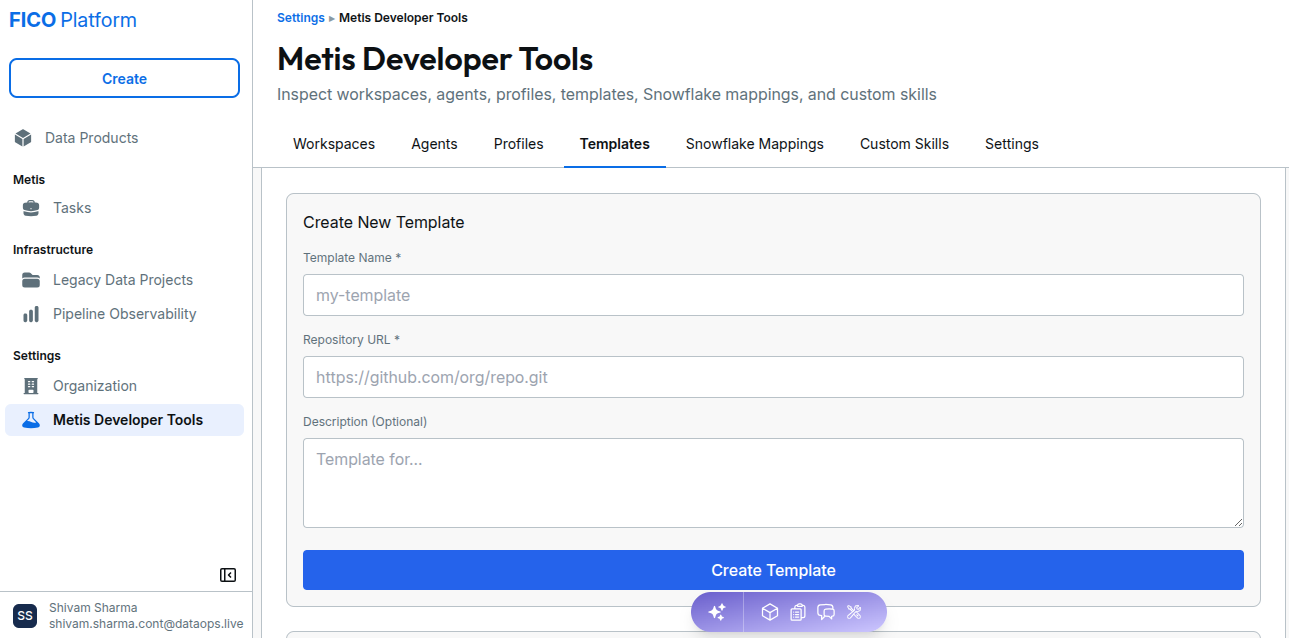
The Templates tab manages project templates used to initialize Metis workspaces.
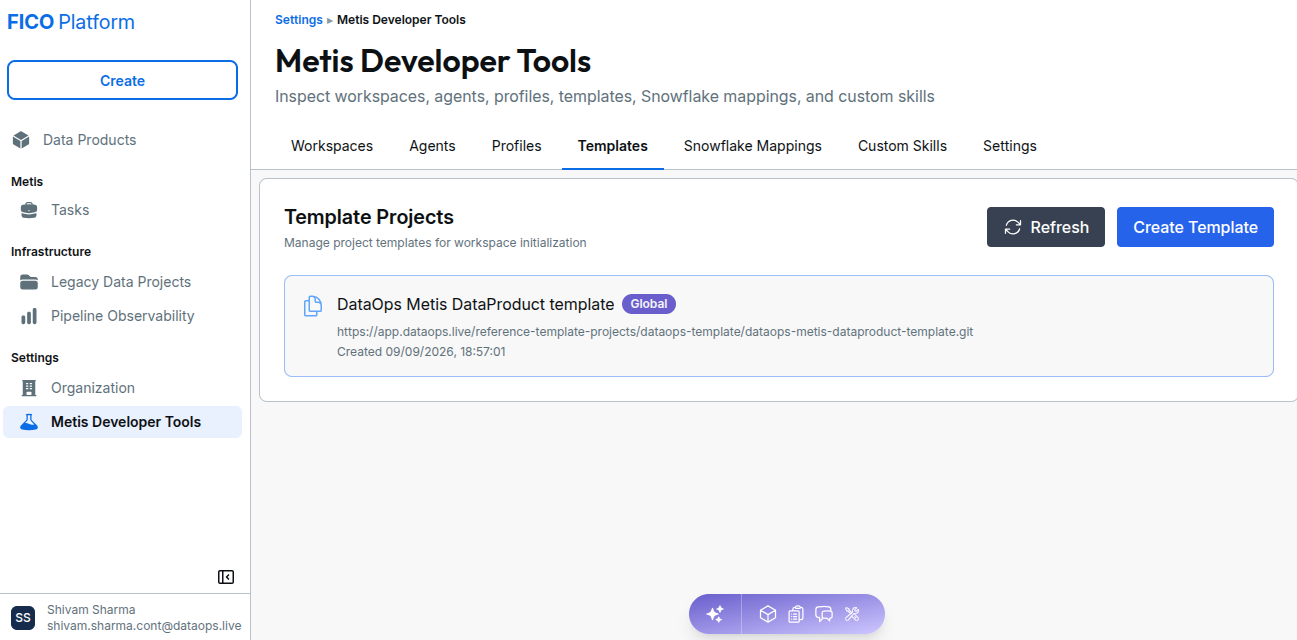
Each template displays information such as:
- Template name.
- Repository URL.
- Template scope.
- Creation date.
Templates marked Global are available as global organization templates.
Template Configuration
| Field | Description |
|---|---|
| Template Name | Name used to identify the template. |
| Repository URL | Git repository containing the project template. |
| Description | Optional description of the template and its intended use. |
5. Snowflake Mappings
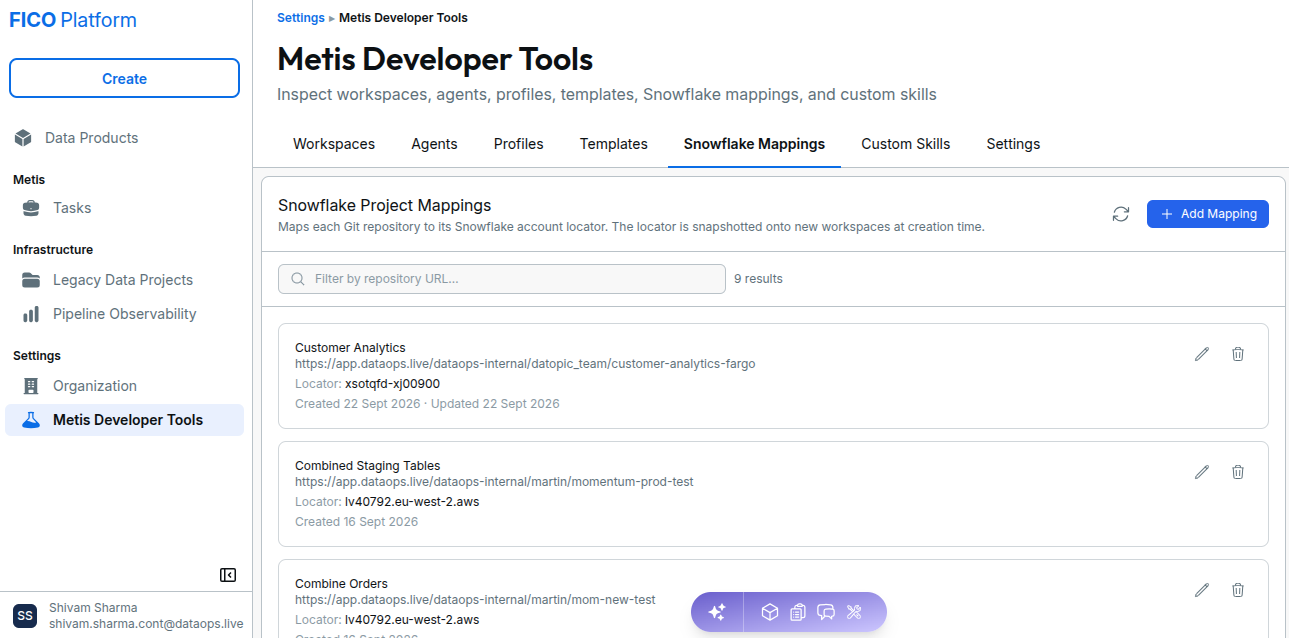
The Snowflake Mappings tab maps Data Product repositories to Snowflake account locators.
These mappings allow a repository to be associated with the appropriate Snowflake account when a new workspace is created.
Create a Snowflake Mapping
To create a mapping, open Snowflake Mappings and select "Add Mapping". Select the required Data Product under Repository, or choose "Enter URL manually instead" to provide the repository URL. Enter the Snowflake Account Locator, then select Create Mapping.
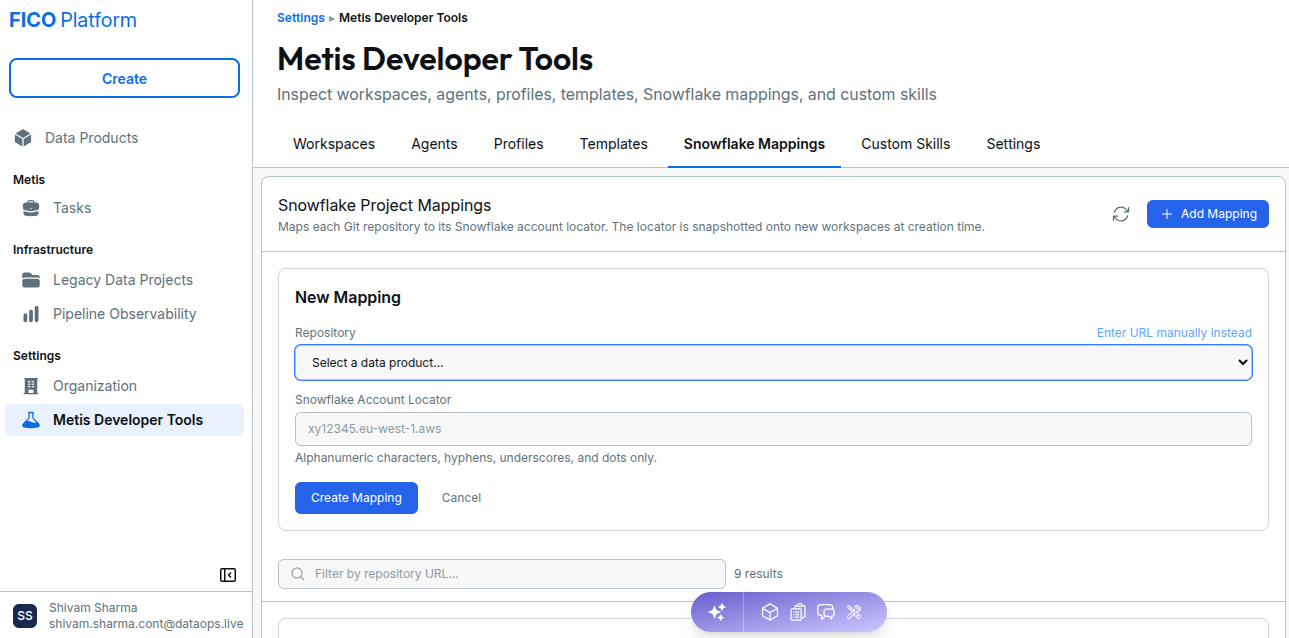
The repository must use a valid Snowflake account locator format. The interface accepts alphanumeric characters, hyphens, underscores, and dots.
Edit or Delete a Snowflake Mapping
To update or remove an existing Snowflake mapping, locate the required repository and use the corresponding action:
- Edit: Select the Edit icon, update the Snowflake Account Locator, and select Save Changes.
- Delete: Select the Delete icon and confirm the deletion when prompted.
6. Custom Skills
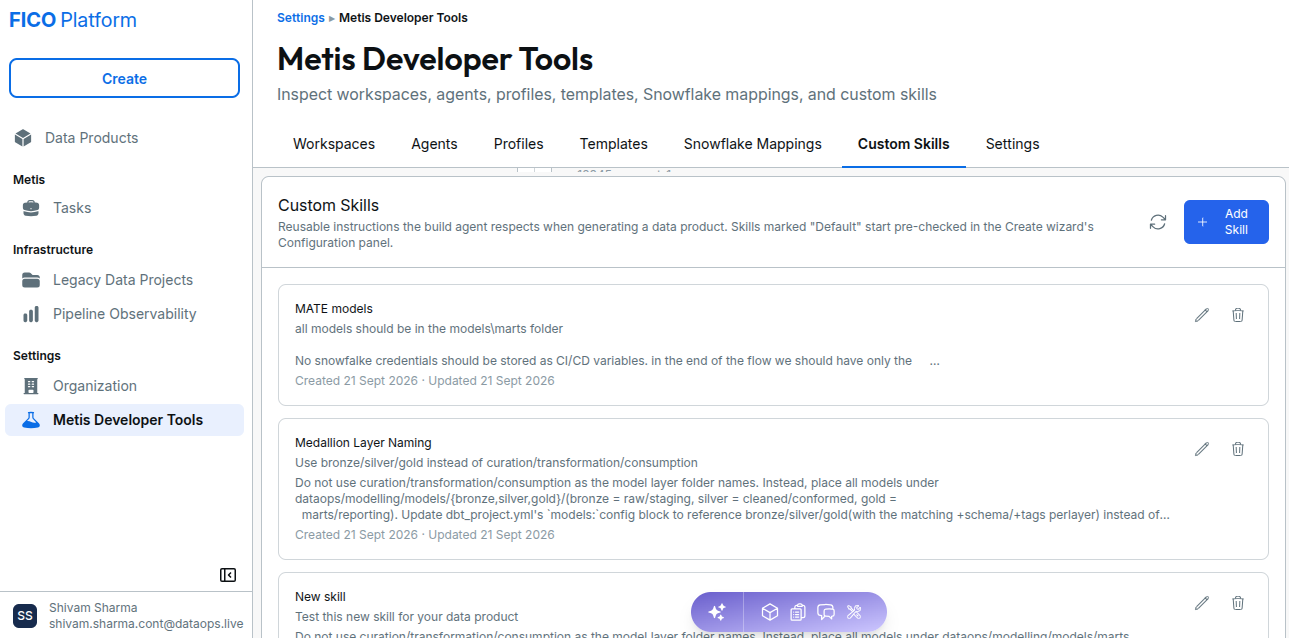
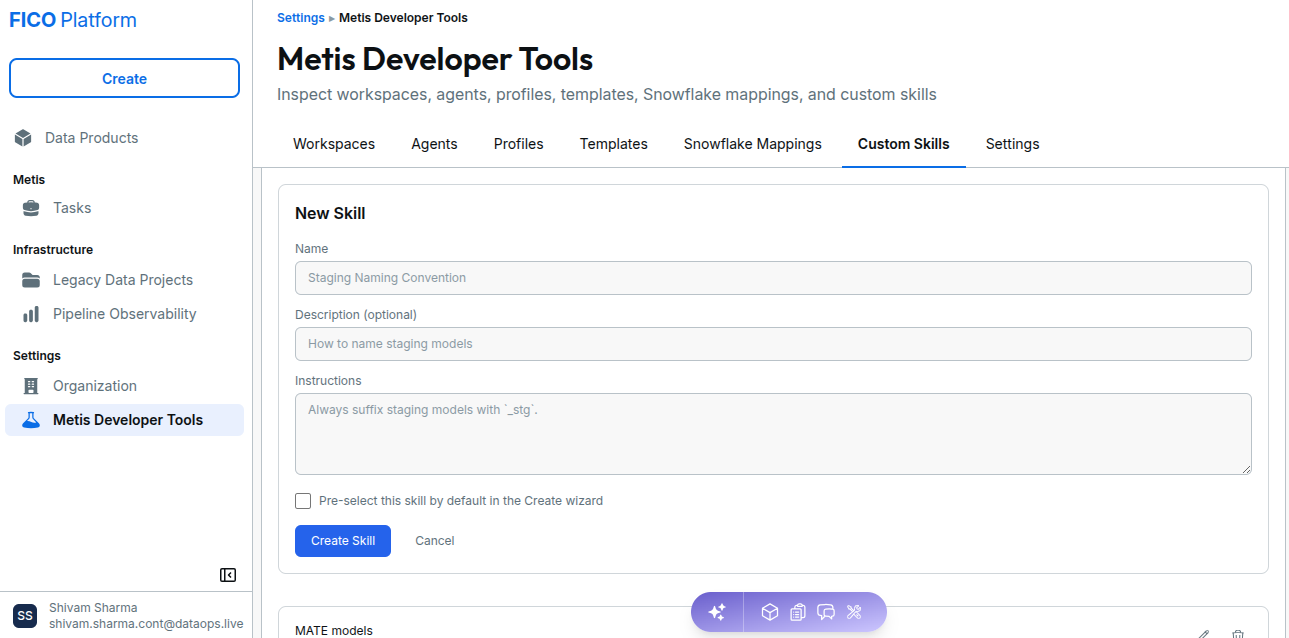
The Custom Skills tab allows organizations to create reusable instructions that Metis follows when generating Data Products.
Custom Skills can be used to capture organization-specific development standards, naming conventions, modeling preferences, and other reusable instructions.
Create a Custom Skill
To create a custom skill, user need to fill in the following fields:
| Field | Description |
|---|---|
| Name | Name used to identify the skill. |
| Description | Optional description explaining the purpose of the skill. |
| Instructions | Reusable instructions that Metis should follow when generating a Data Product. |
| Pre-select this skill by default in the Create wizard | Automatically selects the skill when starting the Data Product creation flow. |
Edit or Delete a Custom Skill
To update or remove an existing Custom Skill, locate the required skill and use the corresponding action:
- Edit: Select the Edit icon, update the Name, Description, Instructions, or default selection setting as required, then select Save Changes.
- Delete: Select the Delete icon and confirm the deletion when prompted.
Use Custom Skills for reusable, organization-specific guidance instead of repeating the same instructions in individual Data Product requirements.
7. Settings
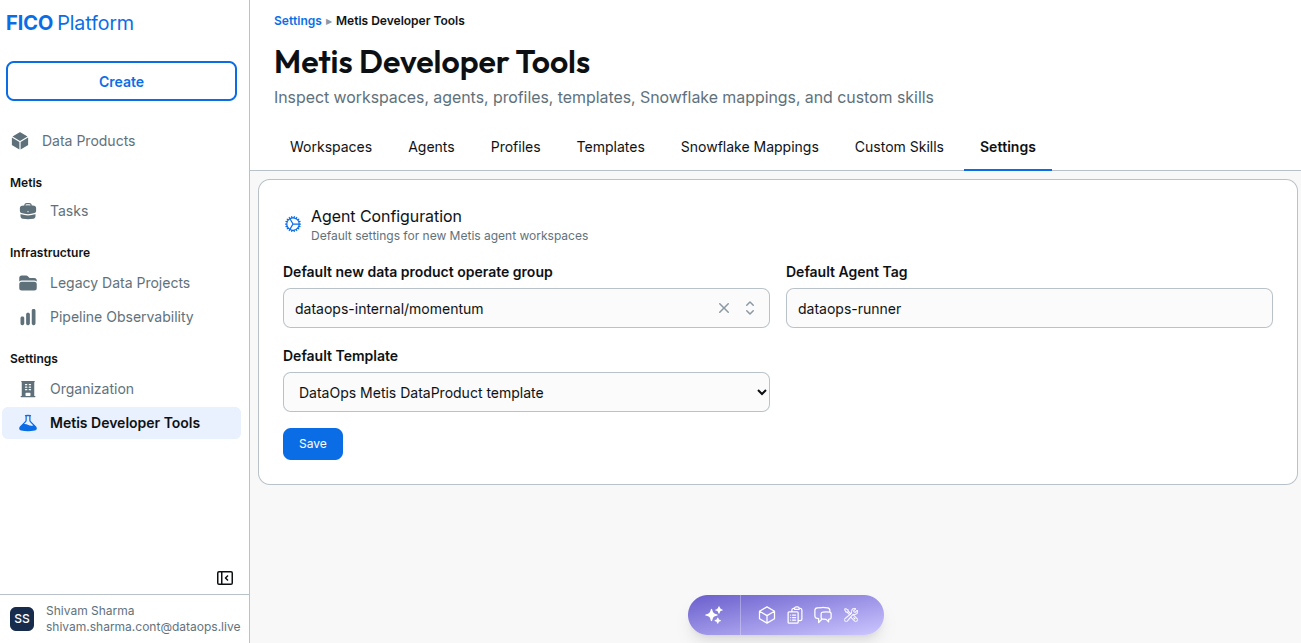
The Settings tab provides default configuration options for new Metis agent workspaces.
Agent Configuration
The Agent Configuration section allows administrators to configure the default values used when setting up new Metis agent workspaces.
The available settings are:
| Setting | Description |
|---|---|
| Default new data product operate group | Defines the default Operate group for new Data Product workspaces. |
| Default Agent Tag | Defines the default agent tag used for new Metis agent workspaces. |
| Default Template | Defines the default project template used for new Metis agent workspaces. |
The configured values are used as the default settings for new Metis agent workspaces. Individual workspace configurations can provide their own workspace-specific options where applicable.