Organization Invitations
Invitations allow users to join a team organization in Momentum.
Organization Admins and Managers can invite users and assign an organization role.
Send an Invitation
To invite a user:
- Enter the user's email address in Invite Member.
- Select a role, if required.
- Select Send Invite.
If no role is assigned, the user joins as a Data Product Consumer.
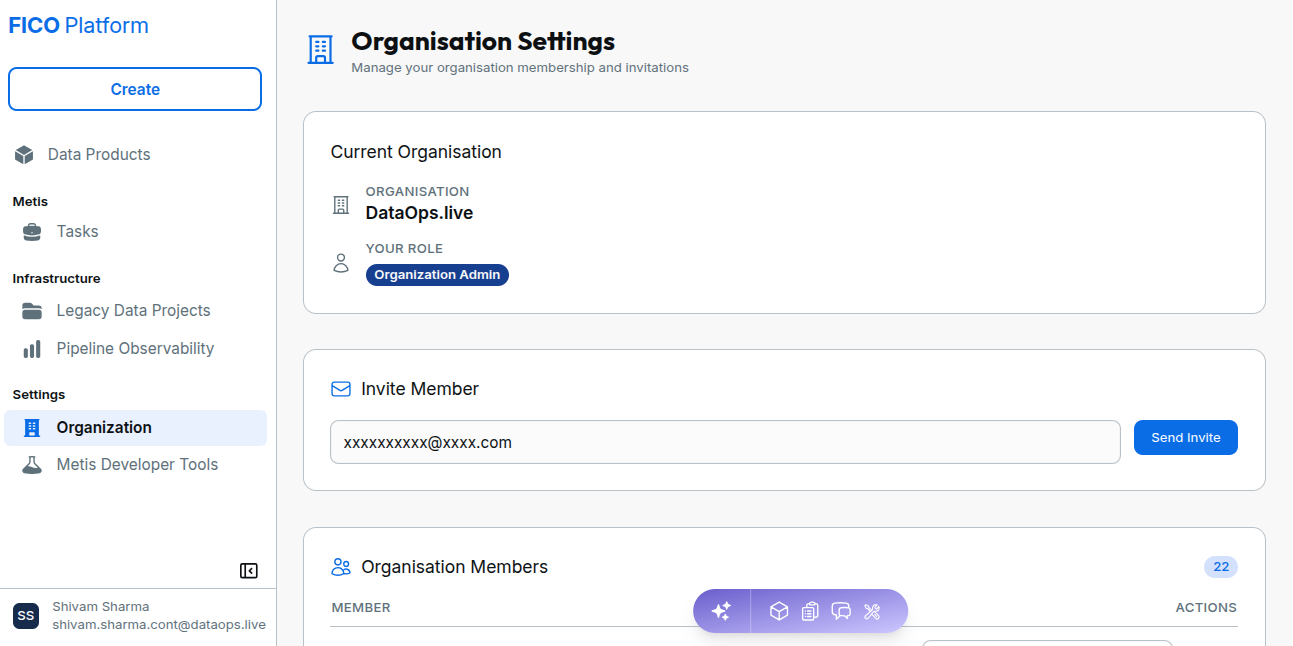
You cannot invite your own email address, an existing organization member, or a user who already has a pending invitation.
Pending Invitations
When a user signs in, pending invitations associated with their email address are displayed.
The invitation includes:
- Organization name.
- Invitation sender.
- Invitation date.
The user can choose Accept or Decline.
Accept an Invitation
When an invitation is accepted, the user joins the organization with the assigned role.
If no role was assigned, the user joins as a Data Product Consumer.
If the user has a personal organization, it is cleaned up when they join a team organization.
Decline an Invitation
When an invitation is declined, the invitation is removed and the user remains in their current organization.
| Action | Result |
|---|---|
| Accept | The user joins the organization with the assigned role. If no role was assigned, they join as a Data Product Consumer. |
| Decline | The invitation is removed and the user remains in their current organization. |
Cancel a Pending Invitation
An Organization Admin or Manager can cancel a pending invitation.
Go to Settings, select Organization, and open Pending Invitations to cancel the invitation.
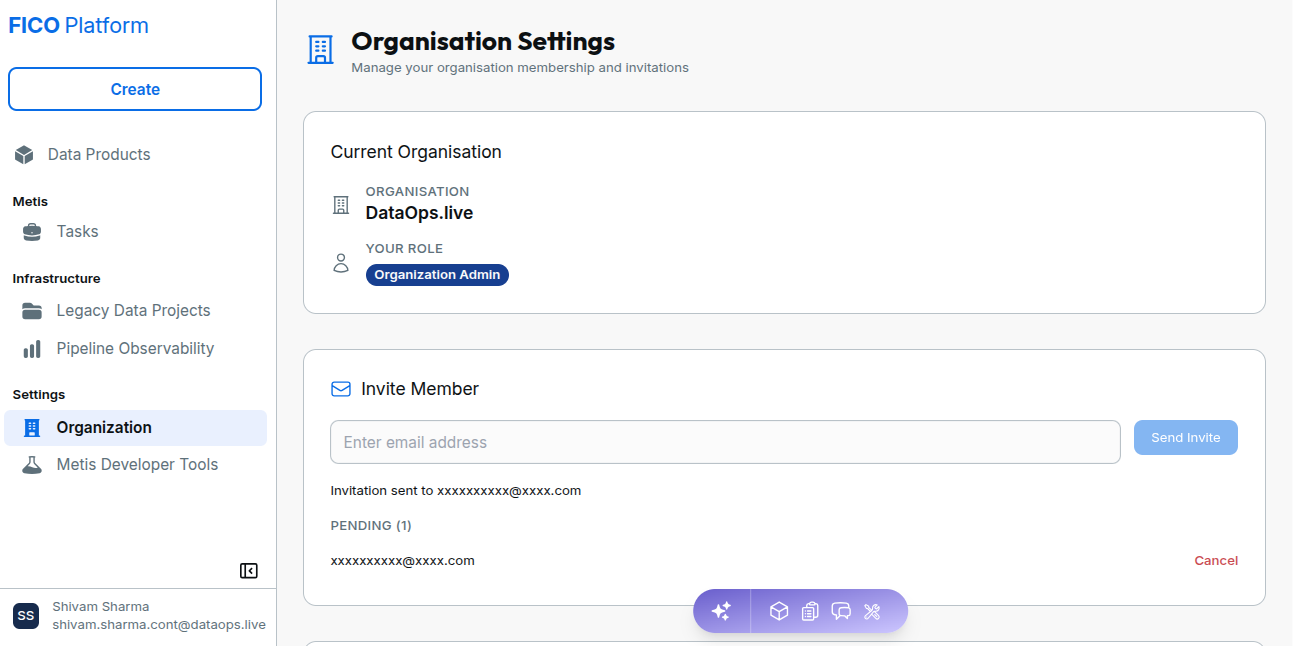
After cancellation, a new invitation can be sent to the same user.
Invitation Rules
The following rules apply to organization invitations:
- Only one pending invitation is allowed per email address.
- A user who is already a member cannot be invited again.
- Users cannot invite themselves.
- A user can only assign roles below their own role level.
- An invitation remains valid even if the user who sent it later leaves the organization.
Invitation Scenarios
Invitation Not Found
If a user cannot find their invitation, ask them to sign in to Momentum and check their Pending Invitations.
Limited Access After Accepting an Invitation
If a user has limited access after accepting an invitation, they may have been assigned the Data Product Consumer role.
An authorized organization member can update the user's role to provide the required access.
Invitation Cancelled
A cancelled invitation is no longer available to the user.
To allow the user to join the organization, send a new invitation.