Spec
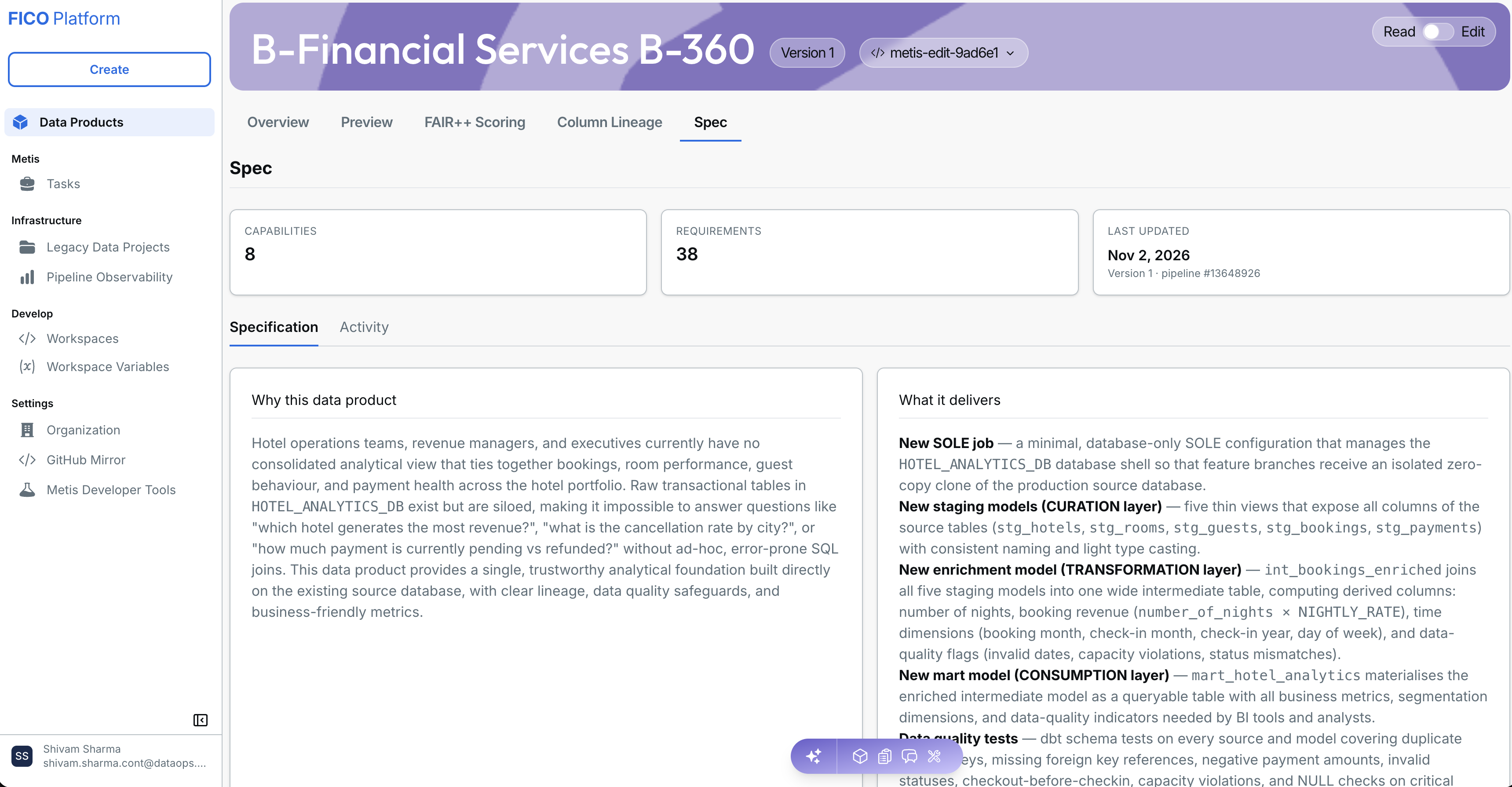
The Spec tab shows the intent behind a Data Product: what it is for, what it must deliver, and how that has changed over time. It is available on every Data Product, after Column Lineage.
What you can use it for
- Consumers – Check what a Data Product promises before you rely on it.
- Owners – Review what has been specified, what is still proposed, and what changed recently and why.
- Reviewers – See before-and-after wording for any requirement, with the date and author of each change.
Note
The Spec tab is read-only. To change a specification, update it through Metis or in the Data Product's repository.
Selecting a branch
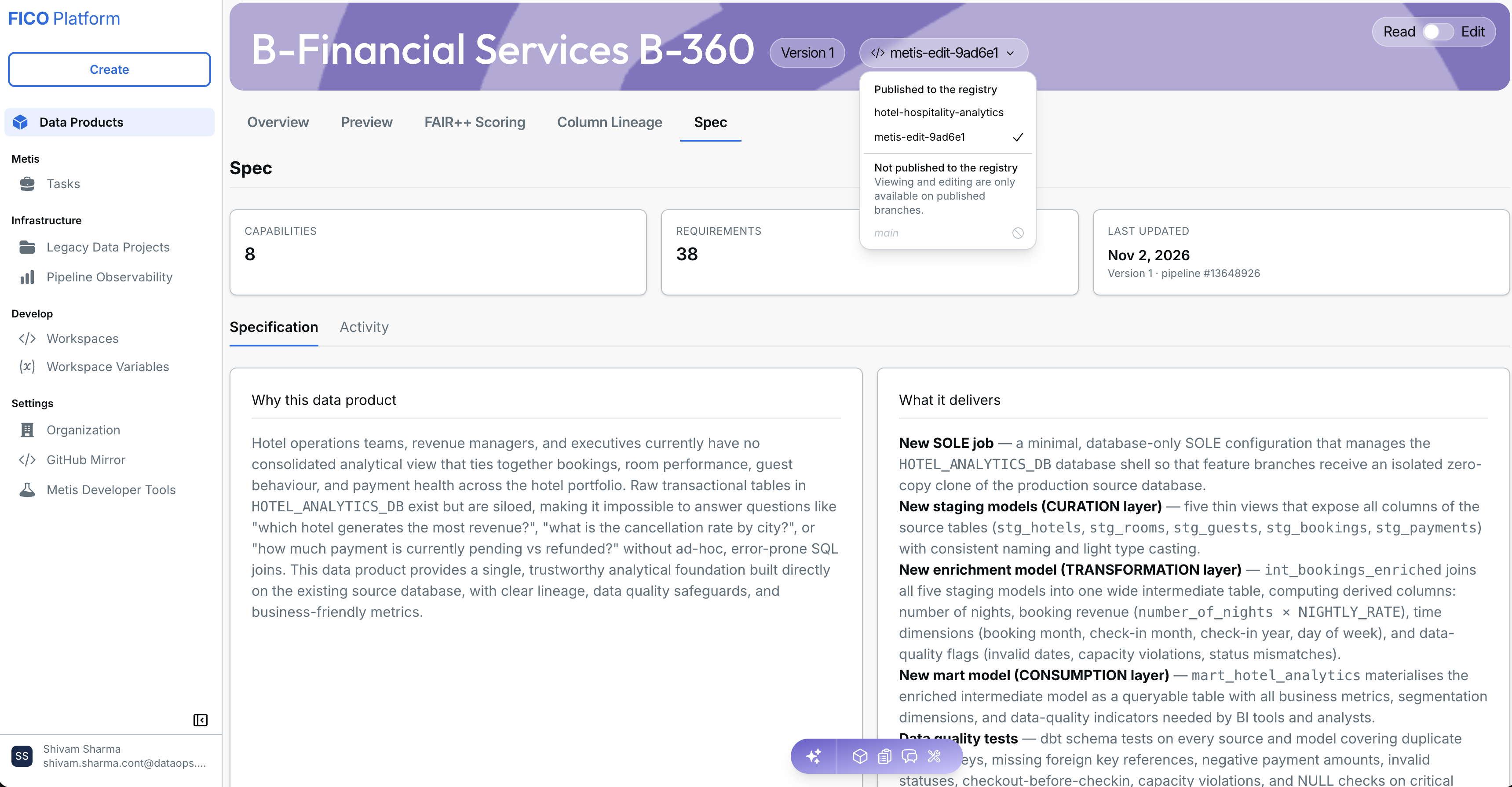
Use the branch selector in the Data Product header to choose which branch's specification to view. The selector groups branches into two lists:
- Published to the registry – Branches that you can select. The current branch is marked with a check mark.
- Not published to the registry – Branches that are shown but unavailable. Viewing and editing are only available on published branches.
Note
You can only select branches that are published to the registry. A branch is published once a pipeline has run on it.
Specification view
The Spec tab opens on the Specification view. It contains the following areas:
- Why this data product – The business need the Data Product addresses, taken from its proposal.
- What it delivers – A summary of what the Data Product provides, such as its source data, transformation models, and output port tables.
- Summary cards – The number of Capabilities and Requirements, and when the specification was Last updated.
- Capability list – The Data Product's capabilities, each with its number of requirements. Nested capabilities are grouped under their parent. A dot next to a capability means it has proposed requirements.
- Requirement cards – The requirements of the selected capability, each with its statement and examples.
Last updated
Last updated shows the date of the most recent version published by a pipeline, together with the version number and pipeline number, for example Version 1 · pipeline #25492. If no pipeline has published a version yet, it shows Not yet published.
Requirements
Select a capability in the capability list to see its requirements. Use Search requirements to find a requirement by its name or statement, and the filter list to show All requirements, Recently changed, or Proposed ones. Each requirement card shows:
- The requirement name and a full statement of what the Data Product must provide.
- Examples that describe the expected behavior as When and Then steps, so you can see how the requirement is checked.
- A View history button with the number of recorded versions.
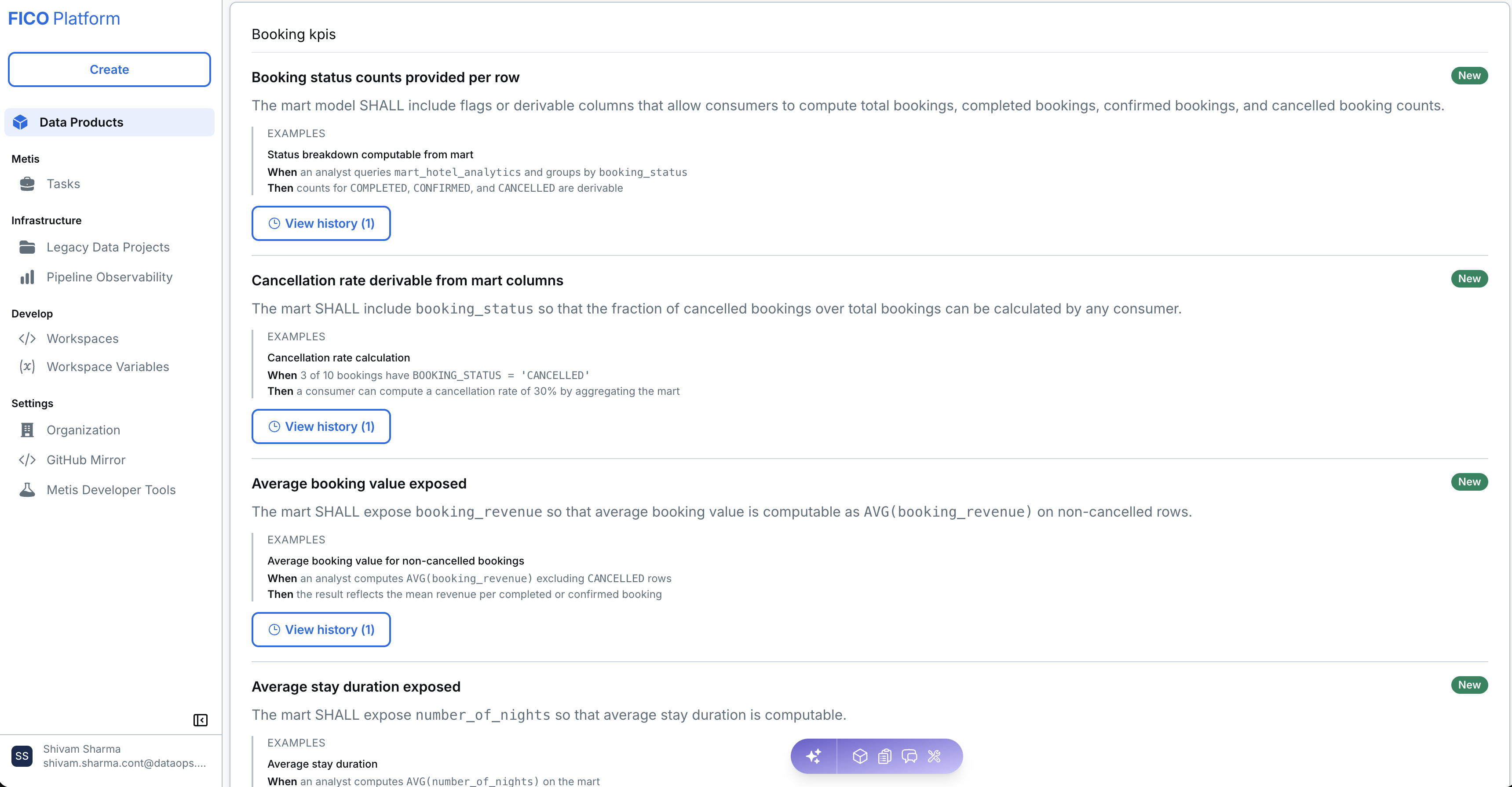
Requirements can carry the following badges:
| Badge | Meaning |
|---|---|
| New | The requirement was added recently. |
| Proposed | The requirement comes from a change that is still in progress. |
| Updated | The requirement changed within the last 30 days. |
Requirement history
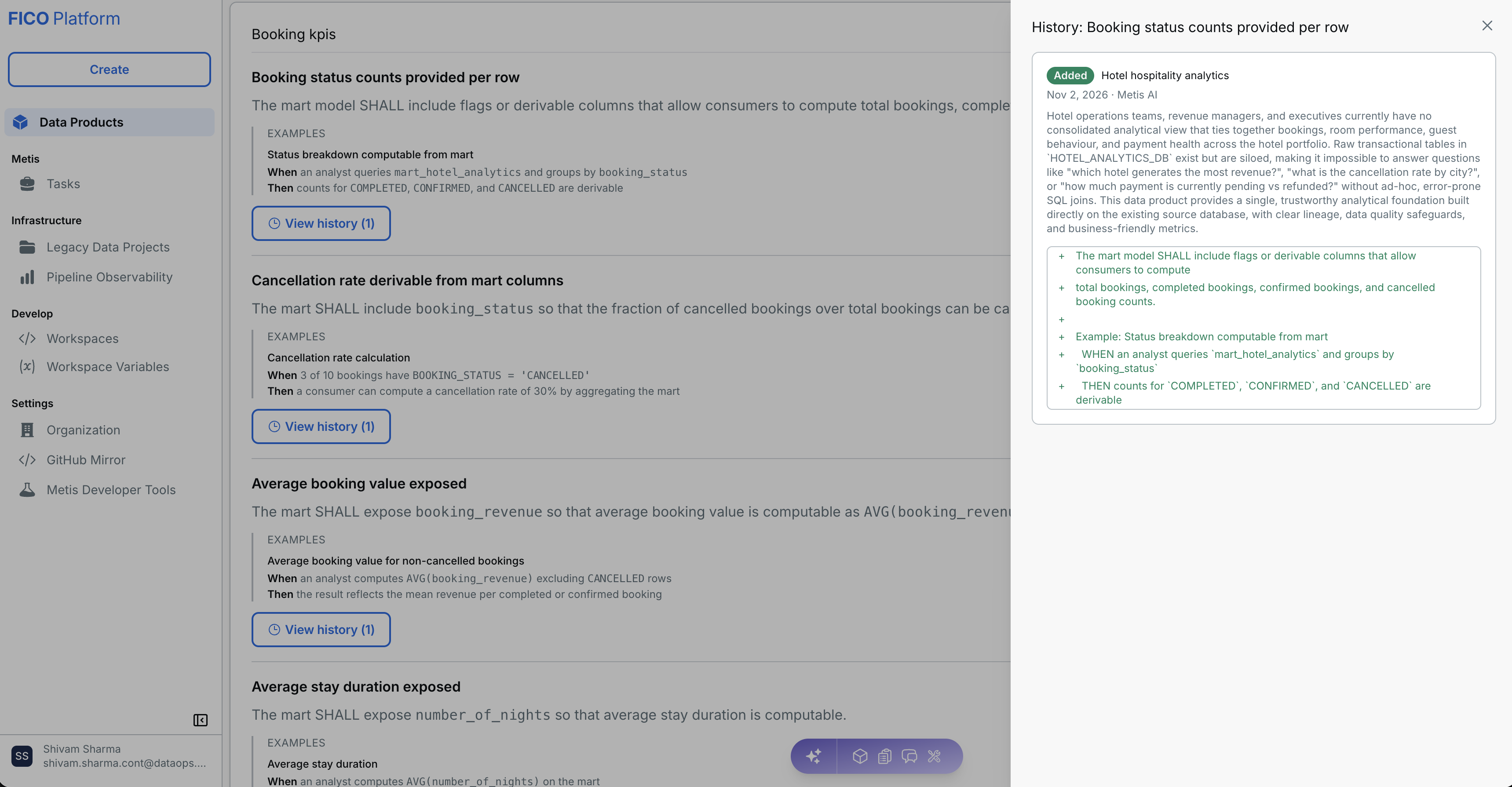
Select View history on a requirement to open a side panel that lists each version of the requirement, newest first. Each entry shows:
- A label that describes how the version came about.
- The change it belongs to, its date, and its author.
- The reason for the change.
- A before-and-after comparison, with added and removed lines highlighted.
Activity view
Select Activity to see every change to the specification as a timeline, newest first.
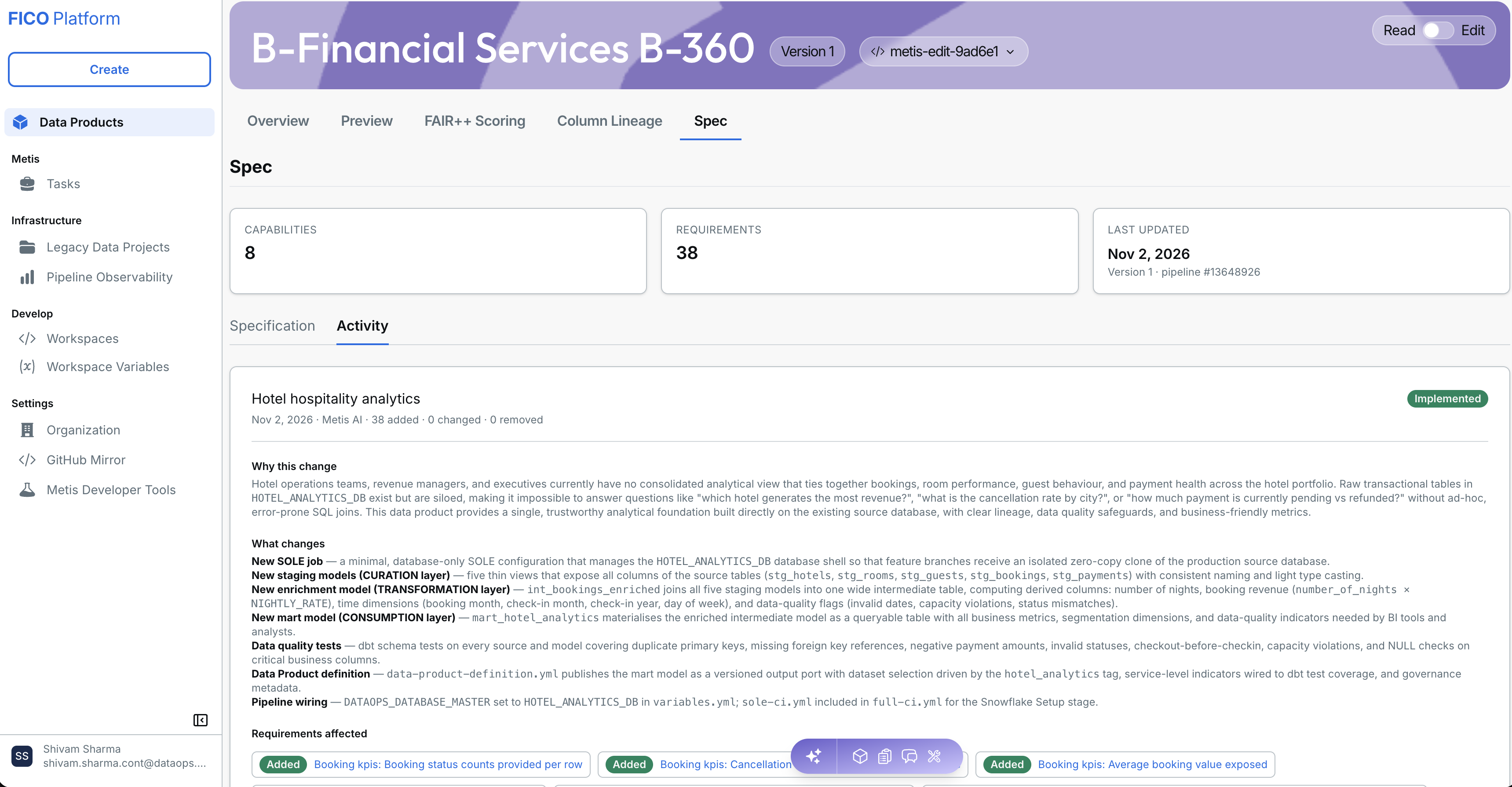
Each change shows:
- The change title and a status badge.
- The date, the author, and how many requirements the change added, changed, and removed, for example Nov 2, 2026 · Metis AI · 38 added · 0 changed · 0 removed.
- Why this change – The reason for the change.
- What changes – A summary of what the change introduces.
- Requirements affected – The requirements the change touches, each labelled Added, Changed, or Removed.
Select an item under Requirements affected to jump to it in the Specification view. Removed requirements are listed but can't be opened, because they no longer exist.
Each change has one of the following statuses:
| Status | Meaning |
|---|---|
| In progress | The change still has open tasks. A progress bar shows how many are complete. |
| Implemented | All of the change's tasks are complete. |
| Completed | The change has been archived. |
If a Data Product has changes but no requirements yet, the Spec tab opens on the Activity view.