Workspace Variables
The Workspace Variables page lets you add settings and credentials that are set automatically in your workspaces, for the groups and projects you choose. Only you can see them.
Access Workspace Variables
To access the Workspace Variables page:
- Open the Momentum platform.
- From the left navigation menu, select Develop.
- Select Workspace Variables.
If you have not added any variables yet, the page shows No variables yet.
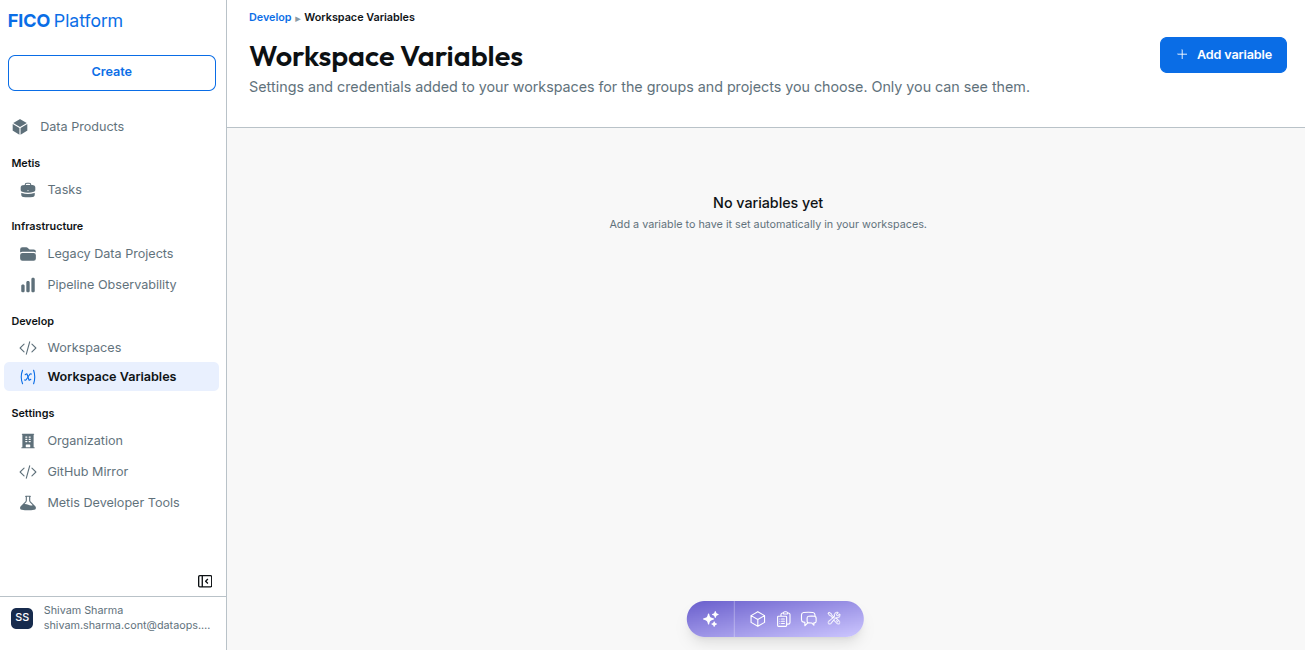
Add a Variable
To add a variable:
- Select Add variable.
- Complete the fields in the Add variable dialog.
- Select Save.
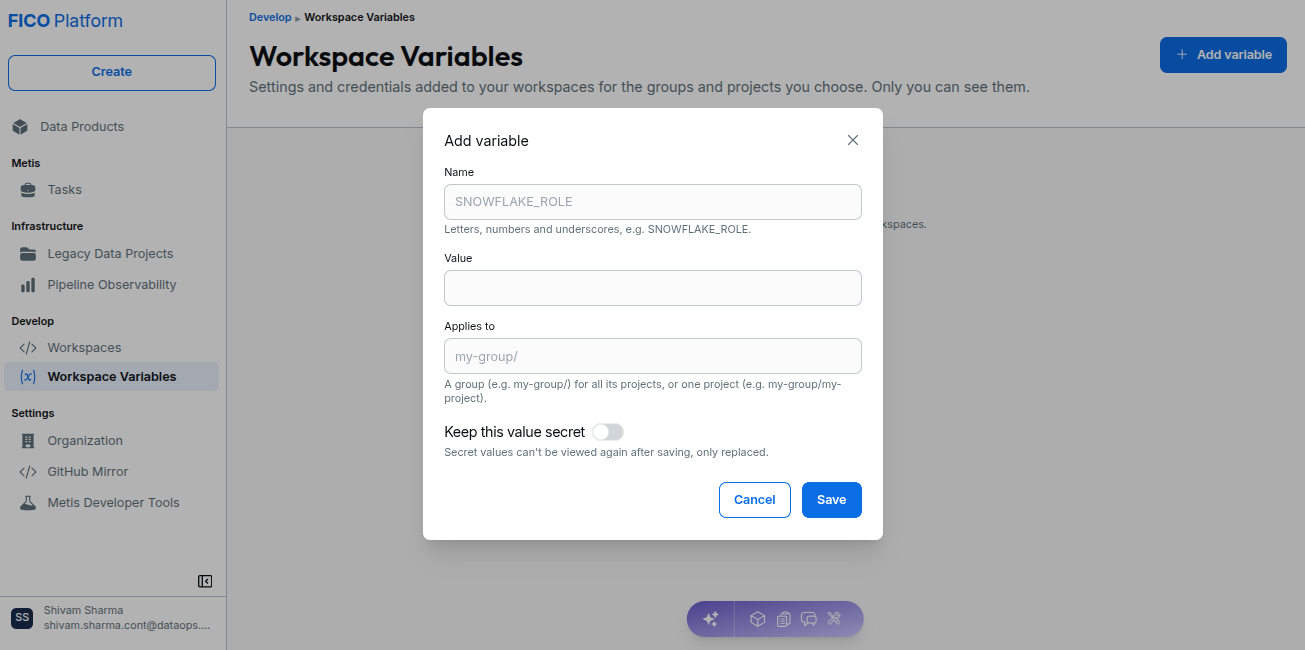
The dialog contains the following fields:
| Field | Description |
|---|---|
| Name | The name of the variable. Use letters, numbers, and underscores, for example SNOWFLAKE_ROLE. |
| Value | The value of the variable. |
| Applies to | The group or project that the variable applies to. Enter a group, for example my-group/, to apply it to all of its projects, or a single project, for example my-group/my-project. |
| Keep this value secret | Hides the value after you save it. |
Note
Secret values can't be viewed again after saving. You can only replace them.